How to lock yourself out of apps on iPhone (for real)
Four ways to lock yourself out of apps on iPhone, from the Screen Time passcode trick to app blockers, ranked by how hard each is to undo at 1 a.m.
You don’t need someone to lock you out of TikTok at 3 p.m. You need it at 1 a.m., when you’re tired, the room is dark, and “one more video” has already happened twelve times. Any lock you set up during the day gets tested at night, by the version of you that least wants it to hold.
Short answer: To lock yourself out of apps on iPhone, use a Screen Time limit or schedule with blocking turned on, then let someone else set the Screen Time passcode. That’s the hardest built-in lock to undo. If you’d rather not involve another person, use a blocker that makes every unlock cost time. Focus modes hide apps but don’t lock them.
The real test: how hard is it to undo at 1 a.m.?
Most guides rank these methods by how easy they are to set up. That’s the wrong question. Setting up is easy. You’re rested and motivated. The question is what happens when you want back in.
That’s not a character flaw. In a 2026 Pew survey, 45% of US adults said they’d tried to cut back on their phone in the past year, and only 25% of them called themselves very or extremely successful (Pew Research Center). Willpower alone usually loses to a well-designed feed. Structure does better.
45%
of US adults tried to cut back on their phone in the past year
25%
of them called themselves very or extremely successful
Below are four methods, from easiest to undo to hardest. For each, we describe the exact steps it takes to get back in. These come from Apple’s documentation and the app’s design, not timed tests.
| Method | What it actually blocks | How you undo it at 1 a.m. | Hardness |
|---|---|---|---|
| Focus mode | Notifications and Home Screen pages, not the app itself | Open Control Center, tap Focus, tap the active Focus. Or skip it entirely: open the app from App Library or search | Very easy |
| Downtime or Screen Time Schedule, your own passcode | Apps outside Always Allowed, during set hours | Enter the four-digit Screen Time passcode you set | Easy |
| A third-party blocker (Bricked) | The apps you picked, with Apple’s shield | Free: wait up to 5 minutes. Bricked+: hold up to 60 seconds. Either way it’s a 5-minute peek. Strict mode (Bricked+, focus sessions only): no early exit | Medium to hard |
| Screen Time with someone else’s passcode | Apps past their limit or outside the schedule | Ask the person who holds the code | Hardest |
1. Focus mode (easiest to undo)
Focus is great at one thing: quiet. It’s not a lock.
How to set it up
- Go to Settings > Focus and pick a Focus, such as Personal or Do Not Disturb, or tap the plus button and choose Custom (Apple Support).
- Under Apps, silence notifications from TikTok, Instagram and the rest.
- Choose a Home Screen page that doesn’t show those apps.
- Tap Add Schedule to turn it on automatically, say at 10:30 p.m.
Focus filters, under Add Filter, change what some apps show during a Focus, like which mail account or calendar appears. They don’t block anything.
How you undo it
Apple’s guide gives two ways to turn off a Focus: touch and hold the Focus icon on the Lock Screen, or open Control Center, tap Focus, and tap the active one (Apple Support). That’s two or three taps.
You don’t even need to turn it off. The app is still on your phone. Swipe to the App Library or pull down to search, and it opens normally.
Use it for: cutting the notifications that pull you back in. Pair it with one of the methods below for the actual lock.
2. Downtime or a Screen Time Schedule, with your own passcode
This is the built-in “phone goes to sleep at 11” option. It’s solid, as long as the person who knows the passcode isn’t the one trying to scroll.
How to set it up on iOS 26
- First set a Screen Time passcode: Settings > Screen Time > Lock Screen Time Settings.
- Go to Settings > Screen Time > Downtime, tap Scheduled, and choose Every Day or Customize Days with start and end times (Apple Support).
- Turn on Block at Downtime. Apple says that with it on, restricted apps “can’t be opened during downtime.” With it off, you just see a reminder and “can choose to continue using the apps.”
- Check Settings > Screen Time > Always Allowed and remove anything you don’t need at night.
Apple also sends a reminder 5 minutes before Downtime starts. For more schedule setups, like work hours or weekends only, see how to block apps during certain times.
How to set it up on iOS 27
Apple rebuilt these menus in iOS 27. The guide now describes a Screen Time Schedule: go to Settings > Screen Time > Screen Time Schedule, turn on Schedule, tap Add Schedule, pick the days, and set time windows for which categories of apps are available (Apple Support). The passcode lives under Settings > Screen Time > Passcode & Management > Lock Screen Time Settings (Apple Support).
As of November 2026, Apple’s guide doesn’t describe the exact prompt you see when you try to open a scheduled-off app on iOS 27. Check it on your own phone before relying on it.
How you undo it
Type the passcode. You set it, so you know it. You can also go to Settings and switch the schedule off, which asks for the same code.
Even if you forget it, Screen Time Passcode Recovery can let you reset it. On iOS 27 that’s Passcode & Management > Change Screen Time Passcode, then Face ID or your device passcode, then your Apple Account email and password if asked (Apple Support). That’s a few steps, not a wall.
Use it for: a baseline that’s on every night without you thinking about it. On its own, though, it mostly stops the accidental scroll, not the determined one. Our guide to why Ignore Limit fails adults goes deeper on this.
3. A third-party app blocker
Most app blockers on iPhone, Bricked included, work through Apple’s Screen Time framework. What differs is how each one handles the moment you want back in. Some give you a one-tap override. Others make you wait, pause, or complete a task.
Here’s how Bricked handles it, since it’s ours.
How to set it up
- Install Bricked and allow Screen Time access. Apple’s own app picker opens, and you choose the apps or categories.
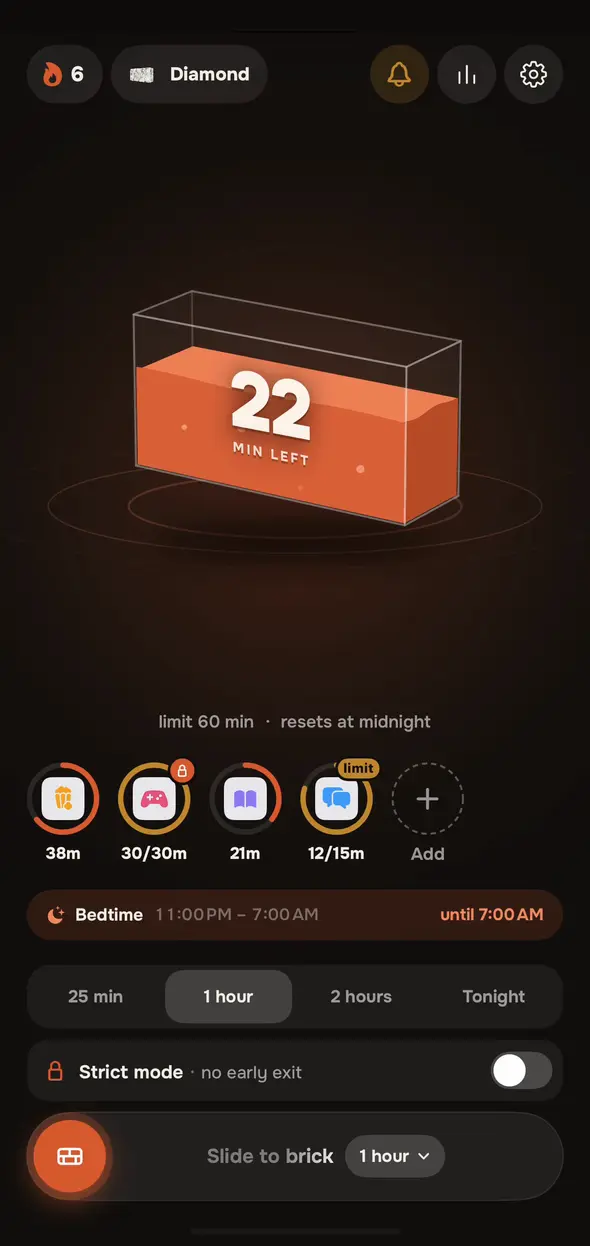
- Set a daily limit, for example 45 minutes for social apps. Your use fills a glass brick with clay on the Home screen (“22 MIN LEFT”).
- Add a schedule, such as bedtime from 11 p.m. to 7 a.m. During that window, apps are bricked even if you have minutes left.
- For a block right now, use Slide to brick: slide, pick 25 minutes, 1 hour, 2 hours or tonight. On Bricked+ you can switch on Strict mode for that block.
How you undo it
- Free plan: each unlock comes after a wait that grows through the day: none the first time, then 30 seconds, 1 minute, 3 minutes, and 5 minutes. You get a 5-minute peek, then the brick comes back.
- Bricked+: you press and hold to unlock, and the hold gets longer each time that day: 3 seconds, then 5, 10, 15, 30, 60. Again, a 5-minute peek.
- Strict mode (Bricked+, focus sessions only): there’s no early exit at all until the block ends.
Apple Screen Time
One tap, every time
Bricked, free
Wait before each 5-minute peek
Bricked+
Press and hold, longer each time
What makes it harder at 1 a.m. isn’t one big wall. Each peek is short, so you have to choose again five minutes later, and the next unlock costs more than the last.
Here’s the honest part. You can still raise your limit in Bricked’s settings, and you can delete the app, which removes the blocks. It blocks whole apps or categories. It can’t block only Reels or only Shorts inside an app. Bricked adds friction at the moment of weakness. It’s not a prison, and we won’t pretend it is. If you want to know how blockers handle deletion, see our explainer on app blockers that can’t be deleted.
Use it for: daily limits and bedtime blocks that hold without involving another person, plus strict blocks for the nights you know you’ll fold. More on the product side: the Bricked app blocker for iPhone.
4. Screen Time with someone else’s passcode (hardest to undo)
This is the closest thing to a real lock that iPhone gives you for free. It works because the code isn’t in your head.
How to set it up
- Set up your App Limits or schedule first (method 2), with Block at End of Limit on for each limit and Block at Downtime on for your schedule.
- Hand your phone to someone you trust: a partner, roommate, sibling or close friend.
- They create the Screen Time passcode (Lock Screen Time Settings) without showing you.
- When iOS offers Screen Time Passcode Recovery, think it through. If you add your own Apple Account, you can reset the code yourself, and the lock is gone. Apple recommends not skipping recovery, because without it a forgotten code is hard to get back. If you skip it, make sure the other person keeps the code somewhere safe.
- Ask them to check that the blocking toggles are on.
How you undo it
You message them and ask. That’s it. Maybe you explain why you need TikTok at 1 a.m., and sometimes, halfway through typing it, you realize you don’t.
The trade-off
It’s rigid. You need them every time you want to adjust a limit, add an exception, or travel across time zones. If the relationship is shaky or they’re hard to reach, it can create friction you didn’t want. It also does nothing for apps outside your limits.
Use it for: the one or two apps you truly can’t trust yourself with. Some people combine it with a blocker: a friend’s passcode guarding Screen Time, and the blocker handling daily limits.
Which method should you use?
- You mainly get pulled back by notifications: Focus mode, plus notifications off for the worst apps.
- You want a gentle bedtime nudge: Downtime or a Screen Time Schedule with your own passcode.
- You keep overriding yourself, but don’t want to depend on anyone: a blocker with escalating unlocks and a bedtime schedule.
- Nothing has held so far, and you have someone you trust: Screen Time with their passcode, recovery off your account.
Whatever you pick, decide your rule in advance and make it specific. “If it’s 11 p.m., my apps are locked and my phone goes on the charger in the kitchen.” If-then plans like this are a well-replicated way to close the gap between intention and action (Gollwitzer & Sheeran, 2006). The lock enforces the plan, and the plan tells the lock what to do.
If nights are your main problem, our guide to stopping scrolling in bed covers the rest of the routine: where the phone sleeps, what to do instead, and how to get through the first week.
Questions people ask
Can I block myself from an app on iPhone?
Yes. The built-in way is a Screen Time limit or schedule with blocking turned on, protected by a Screen Time passcode. The catch is that if you know the passcode, you can unlock it yourself in seconds. To make it stick, let someone else set the passcode, or use a blocker that makes each unlock cost time.
Can I lock myself out only at night?
Yes. Use a schedule instead of a daily limit: Downtime with Block at Downtime turned on (iOS 26) or a Screen Time Schedule (iOS 27). App blockers like Bricked also let you set a bedtime window, such as 11 p.m. to 7 a.m. Either way, the lock is only as strong as the way back in.
Can you lock apps on iPhone without Screen Time?
Not in the self-control sense. On recent iOS versions you can make an app require Face ID, but Face ID is you, so that only keeps out other people. Focus modes can hide apps from a Home Screen page and silence their notifications, but they don't stop you opening the app. Most iPhone app blockers, Bricked included, are built on Apple's Screen Time framework.
What's the hardest way to lock yourself out of an app?
A Screen Time passcode that someone else set, with no recovery on your own Apple Account and blocking turned on. You can't undo it without that person. The trade-off is that you need them for every legitimate change, too.
Can I just delete the app instead?
You can, and some people find that re-downloading and logging back in is enough friction. But it's all-or-nothing, it's easy to undo on a bad night, and it doesn't work for apps you need in small doses. Limits and schedules let you keep an app without letting it keep you.
Sources
- Apple Support (iOS 26): Set schedules with Screen Time on iPhone
- Apple Support (iOS 27): Set Screen Time Schedules and Time Allowances
- Apple Support (iOS 27): Create, change, or remove a Screen Time passcode on iPhone
- Apple Support: If you forgot your Screen Time passcode
- Apple Support (iOS 27): Set up a Focus on iPhone
- Apple Support (iOS 27): Turn on or schedule a Focus on iPhone
- Pew Research Center (2026): About half of Americans say they spend too much time on their smartphone
- Gollwitzer & Sheeran (2006): Implementation intentions and goal achievement, a meta-analysis
You know the feeling. Make it the last time
Pick the apps that eat your evenings. Set a limit. When it runs out, they turn to brick — and the brick holds.