How to get rid of “Ignore Limit” on iPhone Screen Time
Ignore Limit makes iPhone Screen Time easy to skip. How to remove it, why it still fails when you know your own passcode, and what adds real friction.
It’s 11:40 p.m. Instagram’s limit kicks in, a gray screen says “Time Limit,” and your thumb lands on Ignore Limit before you’ve even read it. You set that limit yourself, at a calmer hour, for exactly this moment, and it lasted about half a second.
Short answer: You can’t delete the Ignore Limit button with one switch. Set a Screen Time passcode, then turn on Block at End of Limit for each limit, and a reached limit will ask for the passcode instead of letting you tap past it. If you know that passcode yourself, it’s only four digits away. So hand the code to someone else, or use a blocker where unlocking costs time.
Why “Ignore Limit” is there in the first place
Apple built Screen Time limits as reminders first and locks second. Its own iOS 26 guide says it plainly: “By default, Screen Time limits can be ignored once reached” (Apple Support).
On a limit with no passcode, the limit screen gives you a way past it. Users on Apple Community describe the options as “ignore for 15 minutes” and “ignore limit for today” (Apple Community). Another user found that a “Remind me in 15 minutes” option let them skip the limit without any code, and a Community Specialist replied that it can’t be removed (Apple Community).
So the default design is a speed bump you can step over. That’s fine for a parent who wants a gentle nudge on their own phone. It’s useless when the person you’re trying to stop is you, at night, tired.
You’re far from alone in this. In a 2026 survey, Pew Research Center found that 53% of US adults say they spend too much time on their smartphone. Of the people who tried to cut back in the past year, only 25% called themselves very or extremely successful.
53%
of US adults say they spend too much time on their smartphone
25%
of those who tried to cut back in the past year called themselves very or extremely successful
How to remove Ignore Limit on iOS 26 (step by step)
These steps follow Apple’s iOS 26 guide. Apple changed the menus in iOS 27, so jump to the next section if you’ve updated.
1. Set a Screen Time passcode
- Open Settings and tap Screen Time.
- Scroll down and tap Lock Screen Time Settings.
- Enter a four-digit passcode, then enter it again to confirm.
iOS may then offer Screen Time Passcode Recovery, which lets you reset the code with your Apple Account (Apple Support). Remember this one. It matters later.
2. Add an App Limit
- In Settings > Screen Time, tap App Limits, then Add Limit.
- Pick a category, or tap a category name to choose individual apps like TikTok or Instagram.
- Tap Next and set the daily time. Customize Days lets you give weekends a different limit.
3. Turn on Block at End of Limit
Once a passcode is set, open the limit in Settings > Screen Time > App Limits and make sure Block at End of Limit is on. Turn it on for every limit you’ve created. It’s set per limit, not globally.
Apple’s support pages don’t currently spell this toggle out, but Apple Community answers point to it, and people report having to re-check it after changing the passcode or editing a limit. Check it again whenever you touch your settings.
4. Do the same for bedtime
If you use Downtime, go to Settings > Screen Time > Downtime and turn on Block at Downtime. Apple’s guide says that with it on, restricted apps “can’t be opened during downtime.” With it off, “you can choose to continue using the apps.” This setting also needs a Screen Time passcode.
What changed in iOS 27
iOS 27 reorganized Screen Time. Apple’s current guide now talks about Time Allowances (daily time per category such as Entertainment, Games or Social Media) and a Screen Time Schedule (time windows across the day) instead of App Limits and Downtime (Apple Support).
The passcode moved too. On iOS 27 it’s Settings > Screen Time > Passcode & Management > Lock Screen Time Settings (Apple Support).
As of November 2026, Apple’s guide doesn’t describe what the limit screen offers an adult whose own Time Allowance runs out. The rule that matters hasn’t changed, though: the Screen Time passcode is what protects your settings. Whoever knows that code controls your limits.
Why it still fails adults who know their own passcode
This is the part the parental-control guides skip. With Block at End of Limit on, the button changes and the limit asks for a passcode. A child doesn’t know the code. You do.
So at 11:40 p.m. the choice is no longer “tap Ignore.” It’s “type 4 digits you’ve typed fifty times.” That takes about as long as reading the screen. People describe overriding their own passcode exactly like this: by reflex, in seconds, then straight back to scrolling.
Even if you make the code long and random and write it down, Screen Time Passcode Recovery gives you a way back. On iOS 27, Apple’s reset steps are: Settings > Screen Time > Passcode & Management > Change Screen Time Passcode, authenticate with Face ID or your device passcode, and enter your Apple Account email and password if asked (Apple Support). If the recovery account is yours, the lock is yours to open.
What actually adds friction
Research on self-control and phones keeps pointing in the same direction. A limit works when getting past it costs something: time, effort, or a little embarrassment.
- Economists found that self-set screen-time limits do reduce use, and estimate that self-control problems drive about 31% of social media use (Allcott, Gentzkow & Song, 2022). That number comes from a model, not a direct measurement, but the direction is clear: people want limits, and limits help.
- In a study of the one sec app, a short pause before opening a chosen app led users to abandon 36% of their attempts to open it. After six weeks they opened those apps 57% less (Grüning et al., PNAS 2023). A co-author founded one sec, and these are its results, not ours. Still, it’s solid evidence that a deliberate pause works where a one-tap button doesn’t.
Here are three ways to put that cost back in.
Option 1: The friend-holds-the-passcode trick
This is the strongest free fix, and it’s the only one that makes Screen Time’s own block hold.
- Hand your unlocked phone to a partner, roommate or friend you trust.
- They set the Screen Time passcode (Lock Screen Time Settings) without showing you.
- When iOS offers Screen Time Passcode Recovery, decide together. If you add your own Apple Account, you can reset the code yourself, and the trick stops working. Apple recommends not skipping recovery, because without it a forgotten code is hard to get back. That’s the trade-off you’re choosing.
- Turn on Block at End of Limit (and Block at Downtime) for every limit, then let them confirm it’s on.
Now, extra time means asking a real person. One user described having to message a friend to justify more time, and found it embarrassing enough to just put the phone down. That’s the whole point.
The downside: you need that person every time you legitimately want to change something. That includes a travel day, a work app caught in a category, or a new limit. Some people find that freeing. Others give up within a week.
Option 2: Make the passcode painful to type
If you don’t have someone to hold the code, make it annoying. Use a code you can’t type from muscle memory, write it on paper and put it somewhere inconvenient, like a drawer in another room. Don’t add your Apple Account for recovery.
This won’t stop a determined you. But it turns “four digits by reflex” into “get out of bed, find the paper,” and at 1 a.m. that’s often enough.
Option 3: Use a blocker where every unlock costs time
This is the gap Bricked was built for. It uses Apple’s own Screen Time framework, so when your limit runs out, Apple’s shield covers the apps you picked until midnight. The apps turn to brick. What changes is how you get back in.
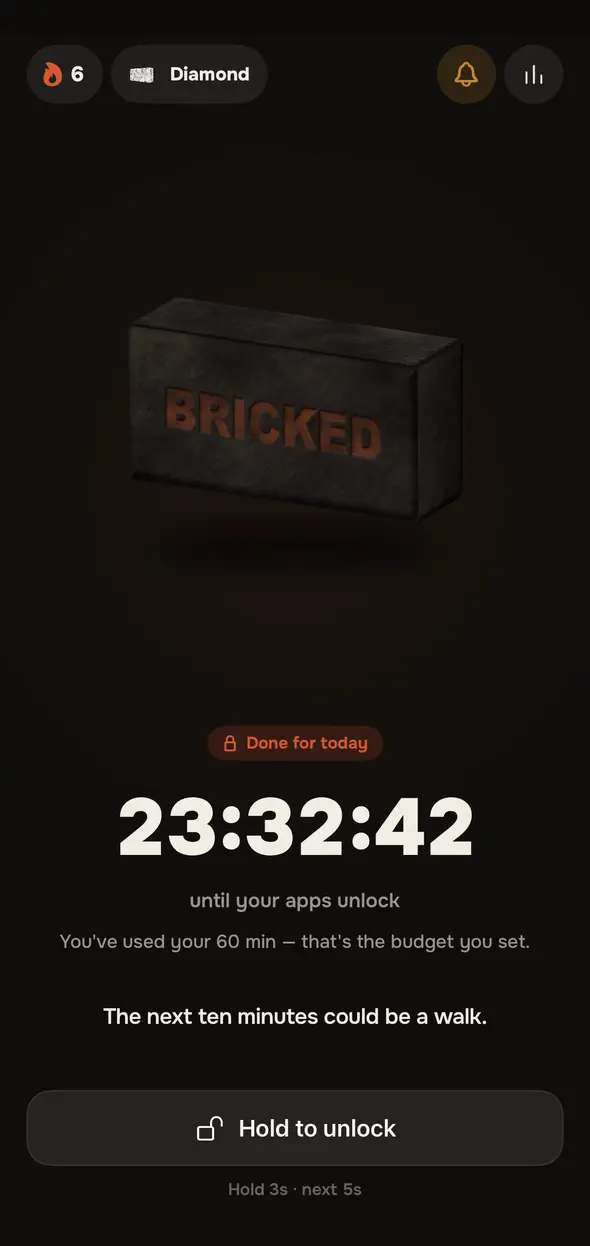
- There’s no one-tap Ignore Limit. Every unlock is a 5-minute peek, then the brick comes back.
- On the free plan, each unlock comes after a wait that grows through the day: none, then 30 seconds, 1 minute, 3 minutes, 5 minutes.
- On Bricked+, you unlock with a press-and-hold that gets longer each time: 3 seconds, then 5, 10, 15, 30 and 60. It’s a deliberate hold, not a tap.
- Strict mode (Bricked+) is for bricks you start yourself with Slide to brick. Pick 25 minutes, an hour, two hours or tonight, and there’s no early exit at all.
- Schedules like bedtime (say, 11 p.m. to 7 a.m.) brick your apps on time, even if you have minutes left.
To be honest about its limits: you can still raise your limit in Bricked’s settings, and you can delete the app, which removes the blocks. Bricked doesn’t pretend to be a prison. It puts friction at the moment of weakness, the same idea as the friend trick, without needing another person. It also blocks whole apps or categories. It can’t block only Reels inside Instagram or only Shorts inside YouTube, because Apple’s framework works at the app level.
Want the full side-by-side? See Bricked vs Apple Screen Time, or read how strict mode works.
What stands between you and the app at 11:40 p.m.
Here’s how each setup behaves at the moment it counts. It’s described from Apple’s documentation and Bricked’s design, not from timed tests.
| Setup | What you see at the limit | What it takes to keep scrolling |
|---|---|---|
| Screen Time, no passcode | A limit screen with ways past it | A tap or two |
| Your own passcode + Block at End of Limit | A prompt for the passcode | Typing four digits you know |
| Passcode on paper in another room | A prompt for the passcode | Getting up and finding it |
| Someone else’s passcode, no recovery on your account | A prompt for a code you don’t know | Messaging them and asking |
| Bricked (free) | Apple’s shield over a bricked app | A wait that grows through the day, for a 5-minute peek |
| Bricked+ | Apple’s shield over a bricked app | A hold from 3 to 60 seconds, for a 5-minute peek |
| Bricked+ strict mode (Slide to brick) | Apple’s shield, no unlock option | Waiting it out, or deleting the app |
Apple Screen Time
One tap, every time
Bricked, free
Wait before each 5-minute peek
Bricked+
Press and hold, longer each time
Quick fixes if Ignore Limit still shows up
If you’ve set a passcode and Block at End of Limit and still see a way through:
- Check each limit. The toggle is per limit. Open every one in Settings > Screen Time > App Limits.
- Re-check after changes. Users report it switching off after a passcode change or a limit edit.
- Look at Always Allowed. Apps there skip your limits. It’s at Settings > Screen Time > Always Allowed.
- Check Share Across Devices. With it on, your limits and schedules sync to your iPad and Mac. A setting changed on one device changes all of them.
- Update and restart. For limits that reappear seconds after you dismiss them, or don’t enforce at all, Apple Community replies suggest updating iOS and the app, restarting, or turning Screen Time off and on.
The bottom line
“Ignore Limit” isn’t really the bug. The bug is that any limit you can bypass in one second will be bypassed at the hour you’re least able to say no. Close the gap with a passcode someone else holds, or with a tool that makes every unlock a small, deliberate act.
If your nights are the problem, our guide to locking yourself out of apps on iPhone ranks four methods by how hard each is to undo at 1 a.m. And if you want the bedtime side handled automatically, here’s how to stop scrolling in bed.
Questions people ask
Can you turn off Ignore Limit on iPhone?
Not with a single switch. You set a Screen Time passcode, then turn on Block at End of Limit for each App Limit. After that, a reached limit asks for the passcode instead of letting you skip it with one tap. If you know the passcode yourself, though, it's still only four digits away.
Why does Ignore Limit keep appearing?
Apple's own guide says Screen Time limits can be ignored once reached by default. Without a Screen Time passcode and Block at End of Limit, every limit screen offers a way past it. Some people also report the limit screen popping back up seconds after they dismiss it, which Apple Community threads describe as a glitch rather than a setting.
Does Block at End of Limit work without a passcode?
No. The blocking options only take effect when a Screen Time passcode is set. Apple ties Block at Downtime to the passcode in the same way. Without a code there's nothing standing between the limit screen and the app.
Can you get around Screen Time if you know the passcode?
Yes. If you set the passcode, you can enter it at the limit screen, change the limit, or turn the passcode off in Settings. That's why self-set Screen Time limits tend to fail for adults. The fix is to move the passcode out of your own head or to use a tool that adds friction at the moment you want to bypass it.
Is there an Ignore Limit glitch?
Some users on Apple Community report the limit screen coming back seconds after tapping Ignore, or limits not enforcing at all with Block at End of Limit on. Apple's usual advice is to update iOS and the app, restart, or turn Screen Time off and on again. If it keeps happening, contact Apple Support.
Sources
- Apple Support (iOS 26): Set schedules with Screen Time on iPhone
- Apple Support (iOS 26): Create, manage, and keep track of a Screen Time passcode
- Apple Support (iOS 27): Create, change, or remove a Screen Time passcode on iPhone
- Apple Support (iOS 27): Set Screen Time Schedules and Time Allowances
- Apple Support: If you forgot your Screen Time passcode
- Apple Community: Remind me in 15 minutes (2023)
- Apple Community: Screen time – ignore time limit (2023)
- Pew Research Center (2026): About half of Americans say they spend too much time on their smartphone
- Grüning, Riedel & Lorenz-Spreen (2023), PNAS: Directing smartphone use through the self-nudge app one sec
- Allcott, Gentzkow & Song (2022), American Economic Review: Digital Addiction
You know the feeling. Make it the last time
Pick the apps that eat your evenings. Set a limit. When it runs out, they turn to brick — and the brick holds.